
Appearance
Make it Yours!
From choosing your plan to seeing REx on your chart — here's the full flow.
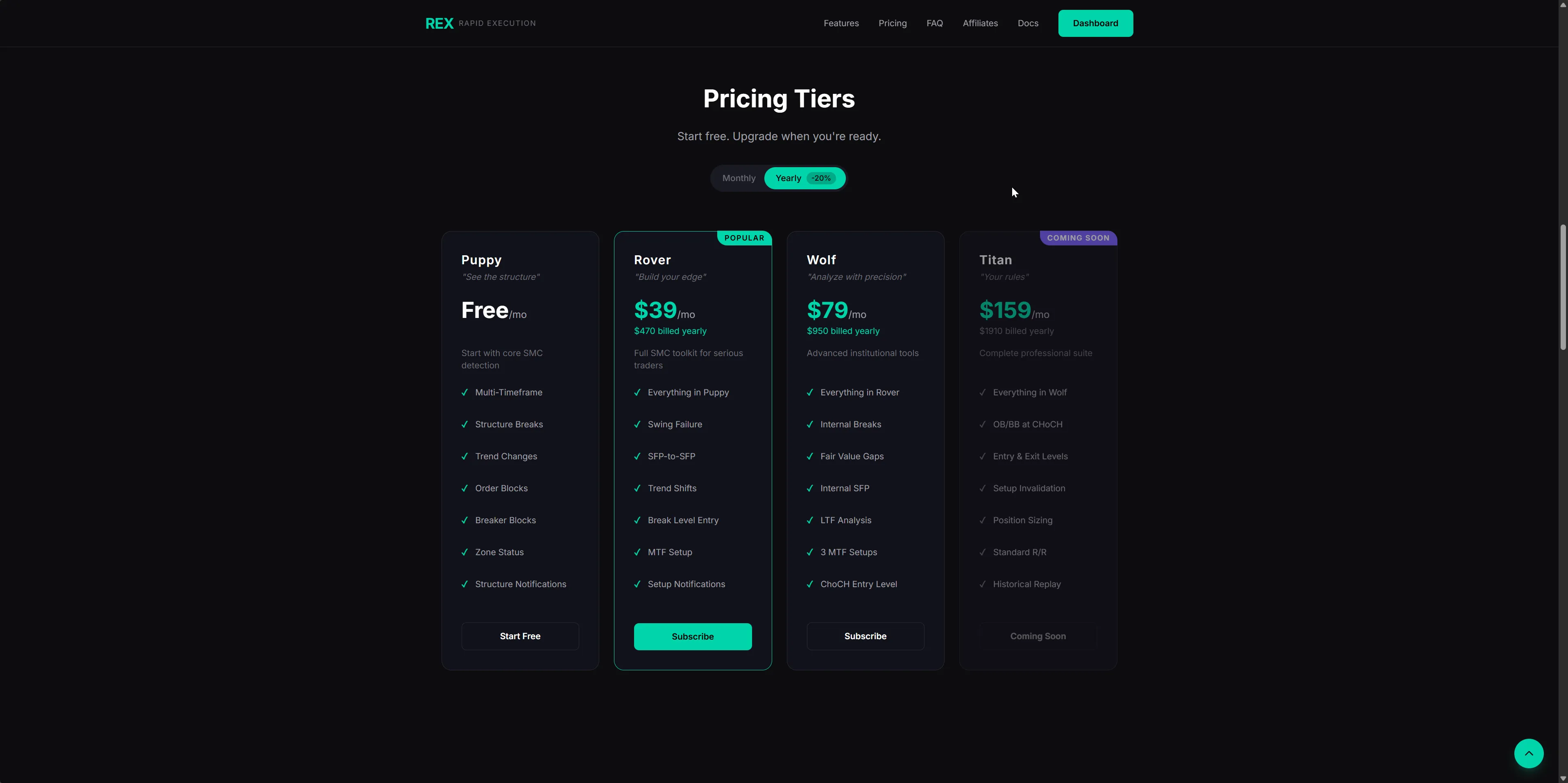
Step 1 — Choose your tier
Go to rexden.ai → Pricing and pick the tier that fits where you are.
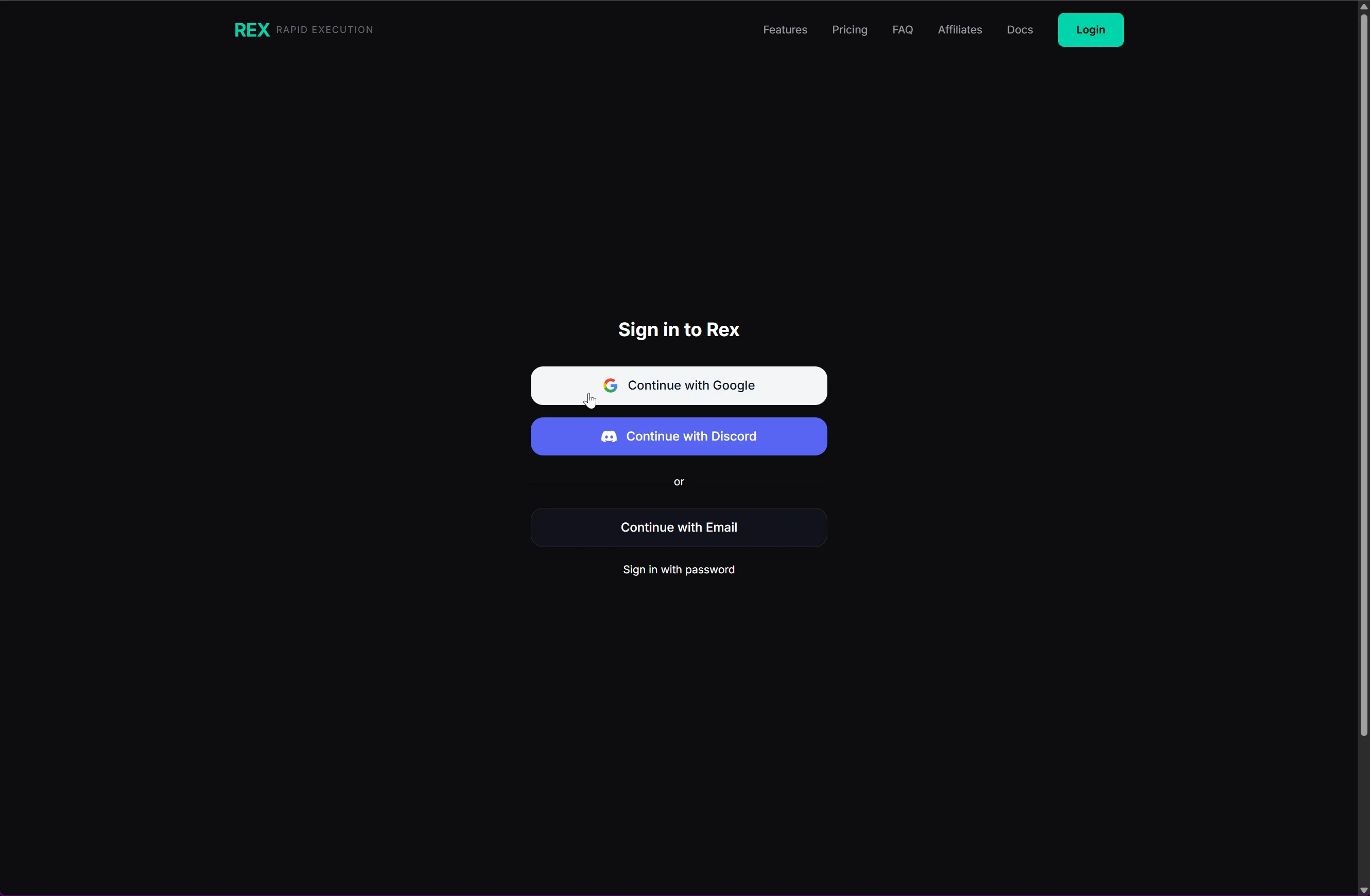
Step 2 — Sign in
Create an account or sign in with Google, Discord, or Email.
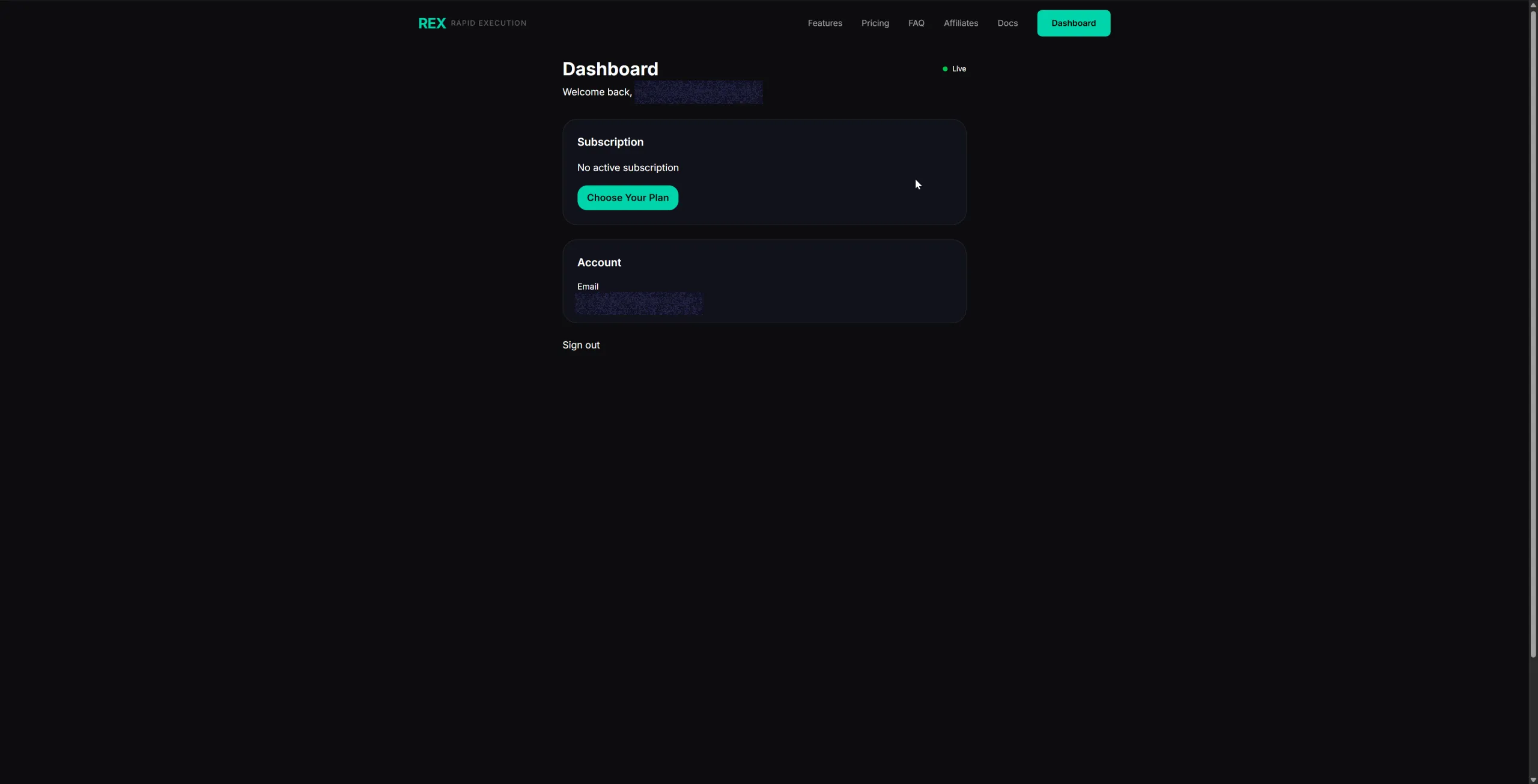
Step 3 — Subscribe from your Dashboard
After signing in you'll land on your Dashboard. Click Choose Your Plan to start the checkout.
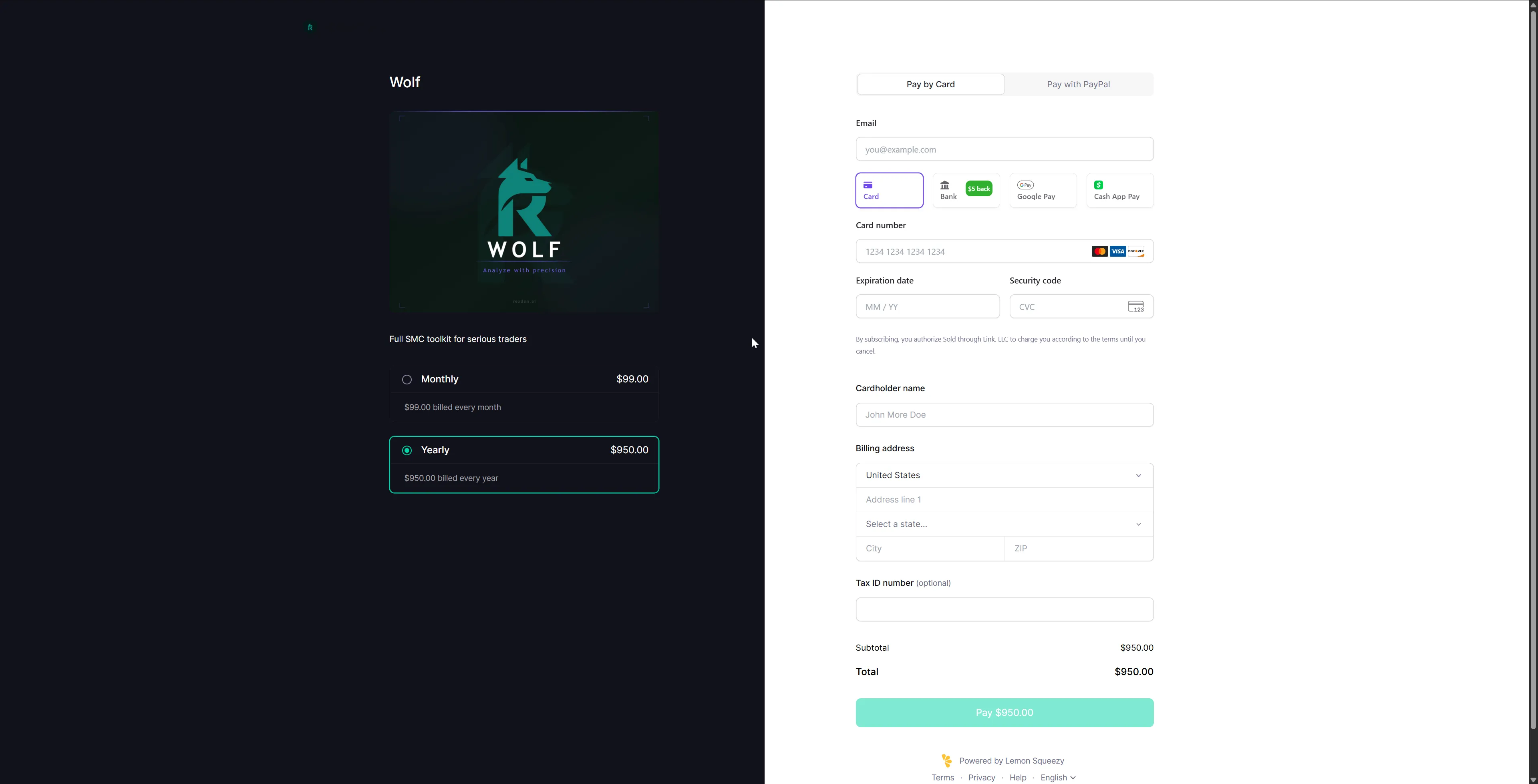
Step 4 — Complete checkout
Select Monthly or Yearly, fill in your payment details, and confirm.
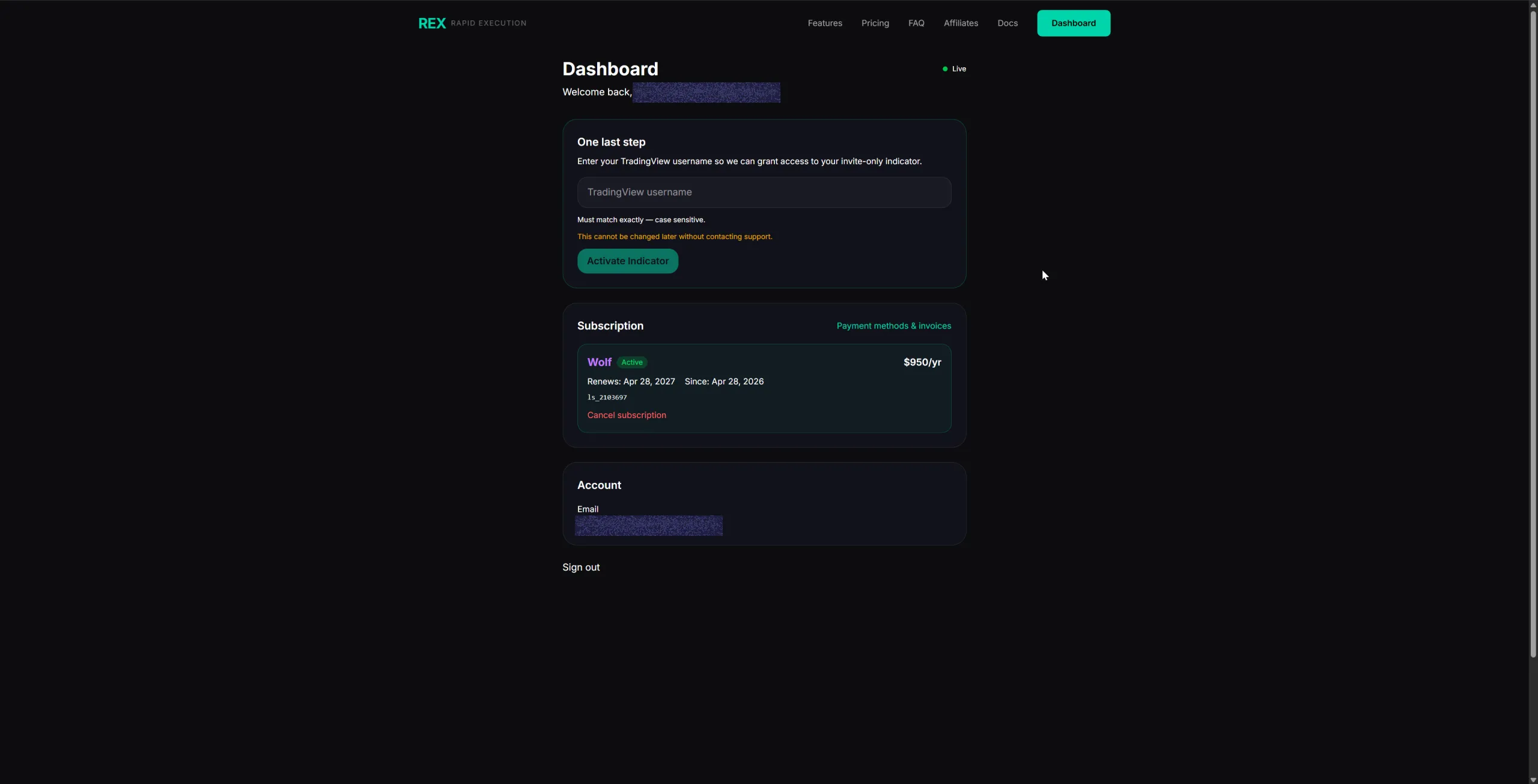
Step 5 — Enter your TradingView username
After payment your Dashboard will show One last step. Enter your TradingView username exactly as it appears on your profile — it's case-sensitive and cannot be changed later without contacting support. Then click Activate Indicator.
WARNING
This is your TradingView username — not your display name or email. Find it at tradingview.com/u/ — it's what appears after the slash.
Step 6 — Accept the invite on TradingView
TradingView will notify you that a new script has been shared with your account. This usually happens within a few minutes. Open TradingView → Indicators → Invite-only — you'll see REx listed there.
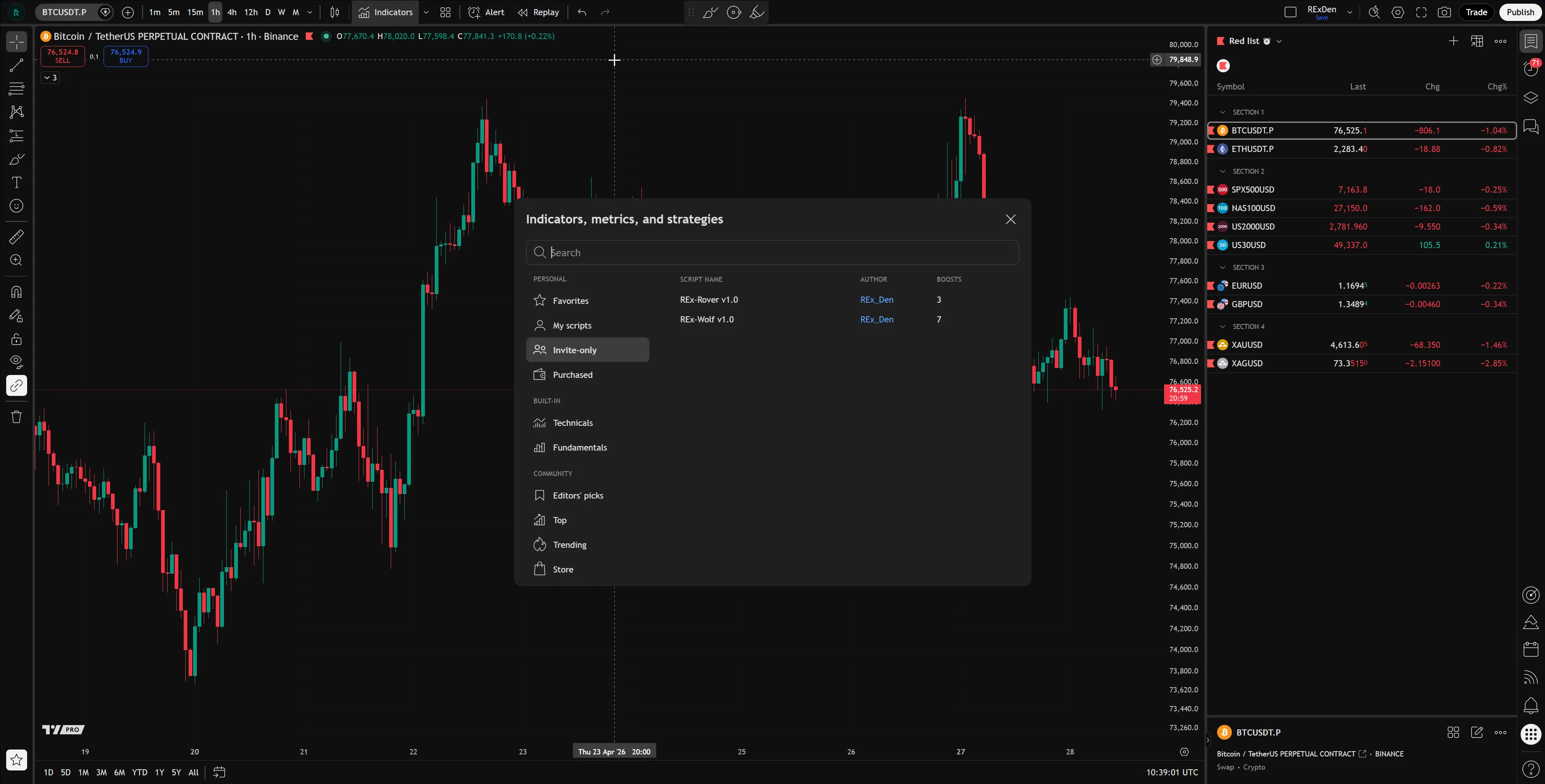
Click it to add REx to your chart.
INFO
If REx doesn't appear under Invite-Only Scripts, refresh TradingView. If it's still missing after 24 hours, contact support.